How Do You Set Up the Action Button on iPhone?
To set up the Action Button on iPhone, go to Settings and tap Action Button. Scroll through the available options — flashlight, camera, silent mode, shortcuts, accessibility, and more — and tap the one you want. The button on the side of your iPhone is now set to that action. You need an iPhone 15 Pro or later running iOS 17 to access this feature.
What Is the iPhone Action Button?
The Action Button is a customizable physical button on the side of iPhone 15 Pro, iPhone 15 Pro Max, and all iPhone 16 models. Unlike the mute switch on older iPhones, the Action Button can be set to trigger almost anything — from turning on your flashlight to launching a specific app through Shortcuts.
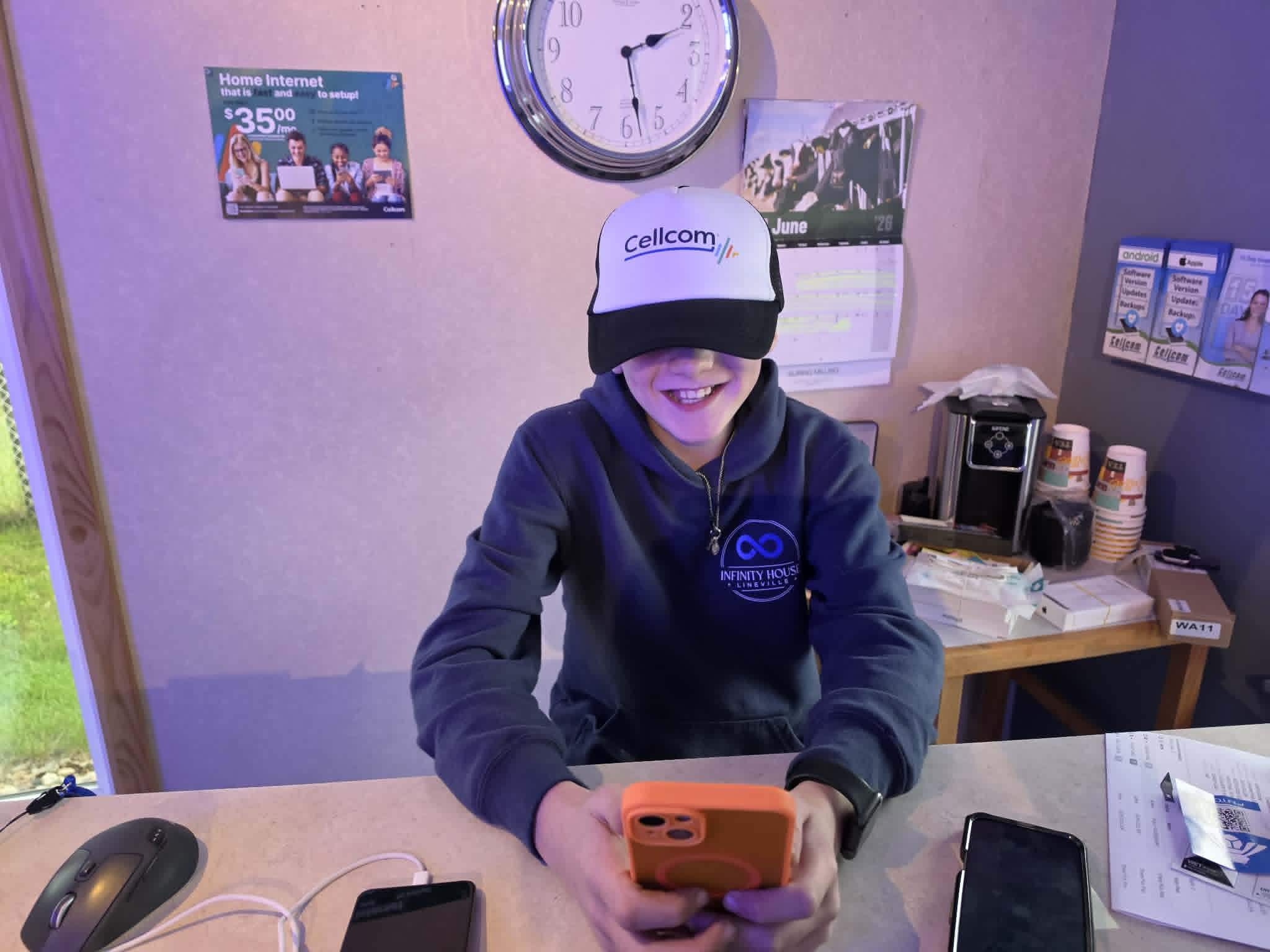
In this J's Tech Corner video, I show you how to find the setting and configure it to whatever you use most. I set mine to the flashlight, which I find myself reaching for all the time.
Watch Now.
How to Set the iPhone Action Button (Step by Step)
Setting up the Action Button takes under a minute from your iPhone Settings.
Open the Settings app on your iPhone. Scroll down and tap Action Button. You will see a row of icons representing the available actions — swipe left or right to scroll through them. Options include Silent Mode, Focus, Camera, Flashlight, Voice Memo, Translate, Magnifier, Shortcut, Accessibility, and No Action.
When you find the one you want, stop scrolling — whatever is centered on screen is selected. Close Settings and try pressing your Action Button to confirm it works.
To set the Action Button to open a specific app, select Shortcut and then choose the app or automation you want to launch.
What Can You Set the iPhone Action Button To?
The Action Button can be set to any of the following: Silent Mode, Focus, Camera, Flashlight, Voice Memo, Translate, Magnifier, a custom Shortcut (including any app on your phone), Accessibility tools, or No Action. The Shortcut option gives you the most flexibility — you can set it to open any app or trigger almost any task on your phone.
Do You Need a New iPhone to Get the Action Button?
The Action Button is available on iPhone 15 Pro, iPhone 15 Pro Max, and all iPhone 16 models. It is not available on older iPhone models or on the standard iPhone 15 or iPhone 15 Plus.
If you are on an older iPhone and want access to the Action Button, it may be time to look at your apple phone upgrade options. Depending on when you last upgraded, an iphone upgrade plan through NorthWoods Wireless could make the switch more affordable than you think.
More Tips from J's Tech Corner
J's Tech Corner is a tip series from NorthWoods Wireless — your local cell phone dealer near me serving Suring WI and Oconto County. We carry the phones and can walk you through every feature on your new device after you buy.
Ready to upgrade? [Stop in or contact us] at nthwds.com to explore your options. And if you are trading in, we can walk you through how to erase iPhone for trade in to protect your data and maximize your trade-in value.
Frequently Asked Questions
Does the Action Button work on all iPhones? No — the Action Button is only available on iPhone 15 Pro, iPhone 15 Pro Max, and all iPhone 16 models running iOS 17 or later. If your iPhone has a small switch above the volume buttons, it is a mute switch, not an Action Button.
Can I set the Action Button to open an app? Yes. Select Shortcut in the Action Button settings and choose an app or automation from your Shortcuts library. This lets you open any app on your phone with a single press.
What happens if I press the Action Button by accident? You can set it to No Action in Settings if you find yourself triggering it unintentionally. You can also change the setting any time — go back to Settings, tap Action Button, and scroll to a different option.
Where can I find a cell phone store near me open now to upgrade my iPhone? NorthWoods Wireless is located at 827 E Main St., Suring WI and is open Monday through Friday 9–5 and Saturday 9–12. We are a Cellcom authorized cell phone dealer serving Oconto County and the surrounding Northwoods Wisconsin area. Stop in and we will walk you through your apple phone upgrade options.
Questions? Stop in or call (920) 590-1110 — we're happy to help.